On your TV
Placard
Placard: Digital Signage TV
Plays your menu boards, photos and, with Pro, videos. Keeps your display running from local storage after your phone disconnects.
Compatible Android TV 8.0+ and Google TV devices.
Get the TV app Placard · Android TV & Google TV
Offline digital signage
Turn the TV in your shop, cafe or waiting room into a menu board or photo loop. Send your artwork from an Android phone. Once it’s on the TV, your phone can disconnect.
Free to start. No ads, no account. Video, multiple playlists and schedules with one-time Pro — never a subscription.
01 / Get Placard
Install Placard on your TV and Placard Remote on your Android phone or tablet. Both are available on Google Play.
On your TV
Placard: Digital Signage TV
Plays your menu boards, photos and, with Pro, videos. Keeps your display running from local storage after your phone disconnects.
Compatible Android TV 8.0+ and Google TV devices.
Get the TV appOn your phone or tablet
Placard Remote: TV Signage
Choose your media, arrange the playlist and send it to Placard over your local network. A free companion that requires the TV app.
Android 8.0+. No ads or in-app purchases in Remote.
Get the Android companion02 / How it works
Keep both devices on the same local network. Open Placard on the TV and choose Pair phone. In Placard Remote, choose Enter TV code and enter the six-digit code.
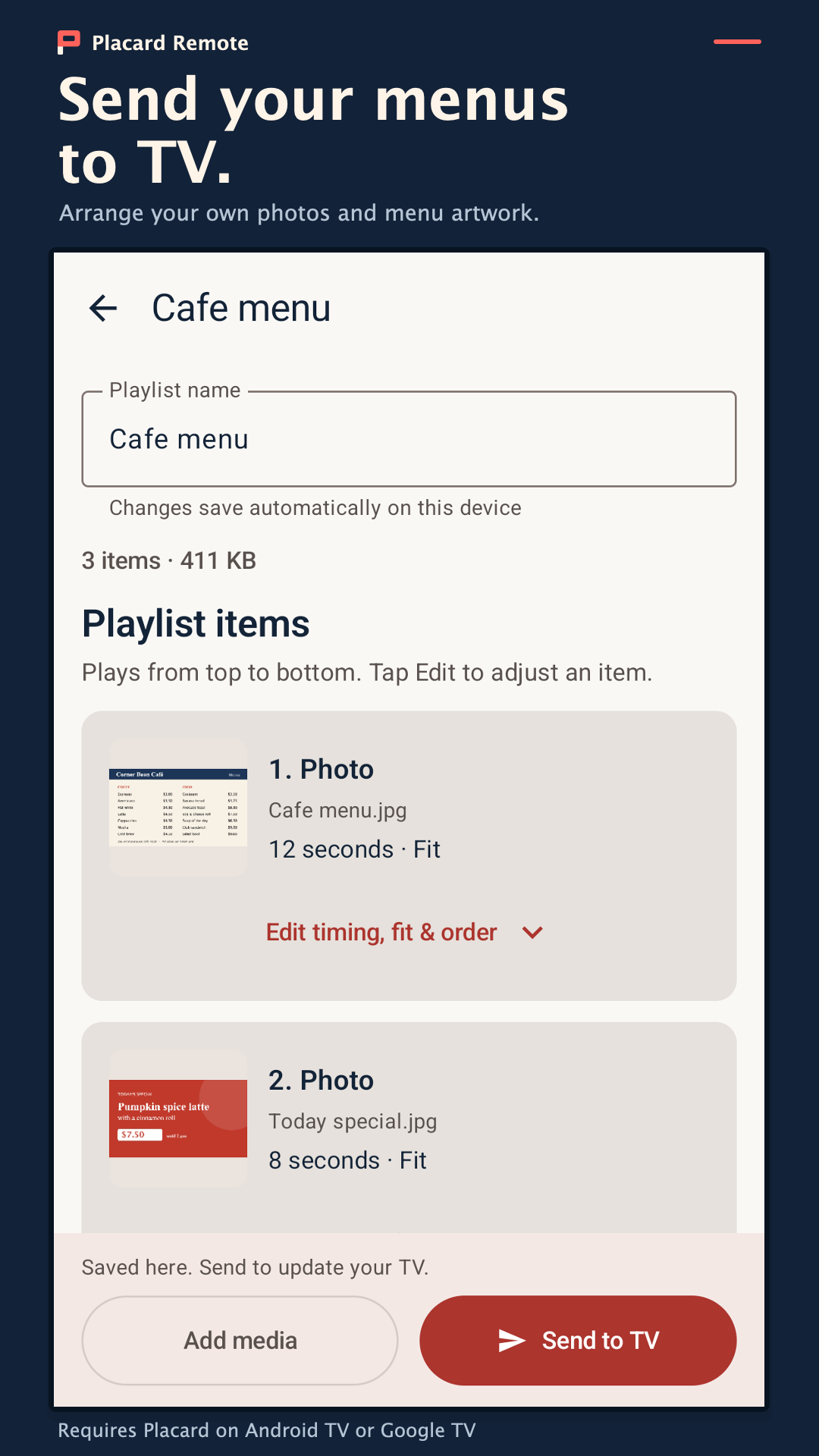
Pick your own menu images, photos or posters. Arrange the order, set photo timing and choose fit or fill. Add supported videos when your TV has Pro.
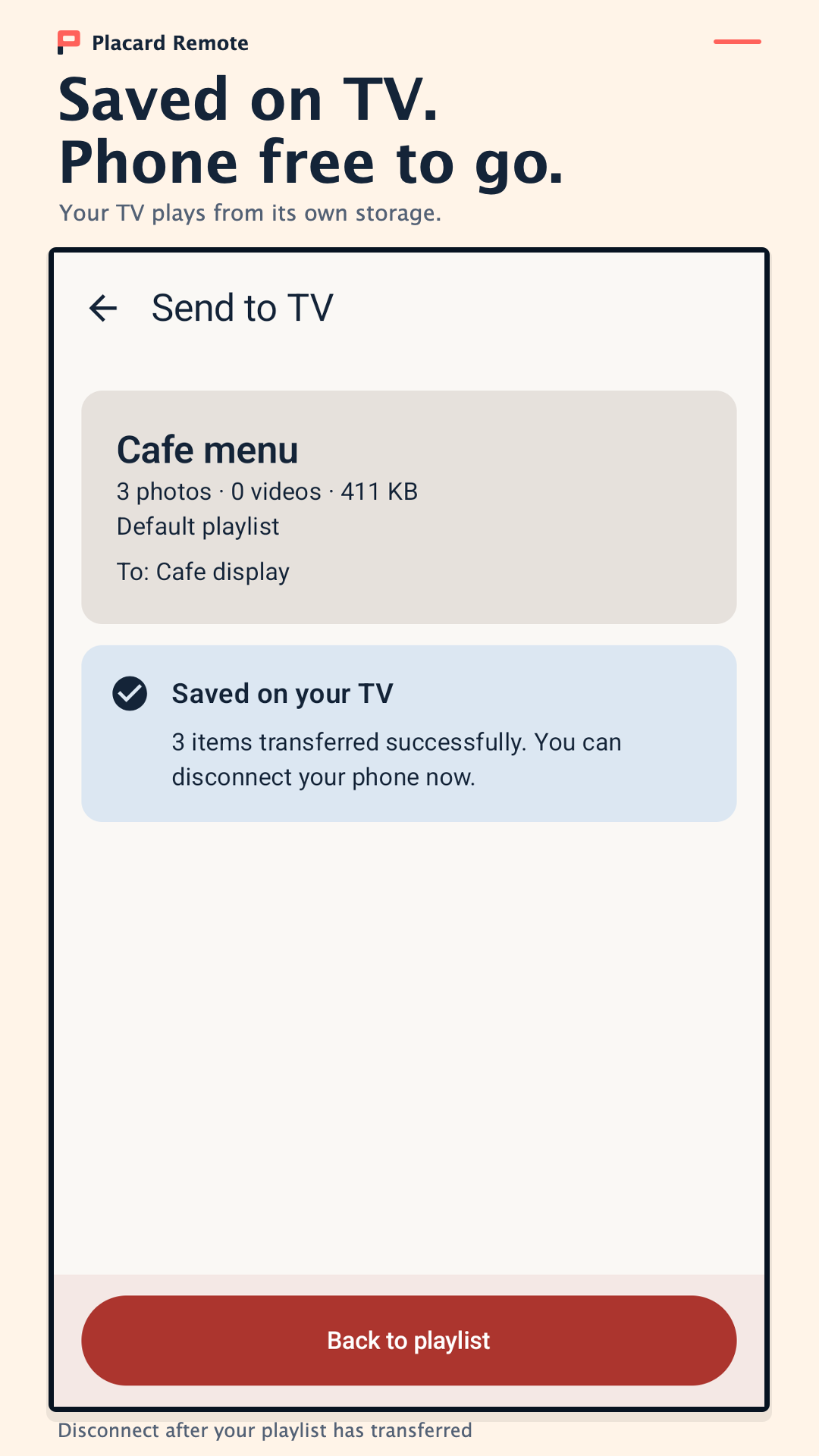
Tap Send to TV and wait for confirmation. Keep Placard open on the TV. Once the playlist is saved, playback continues without internet and your phone can disconnect.
03 / What it does
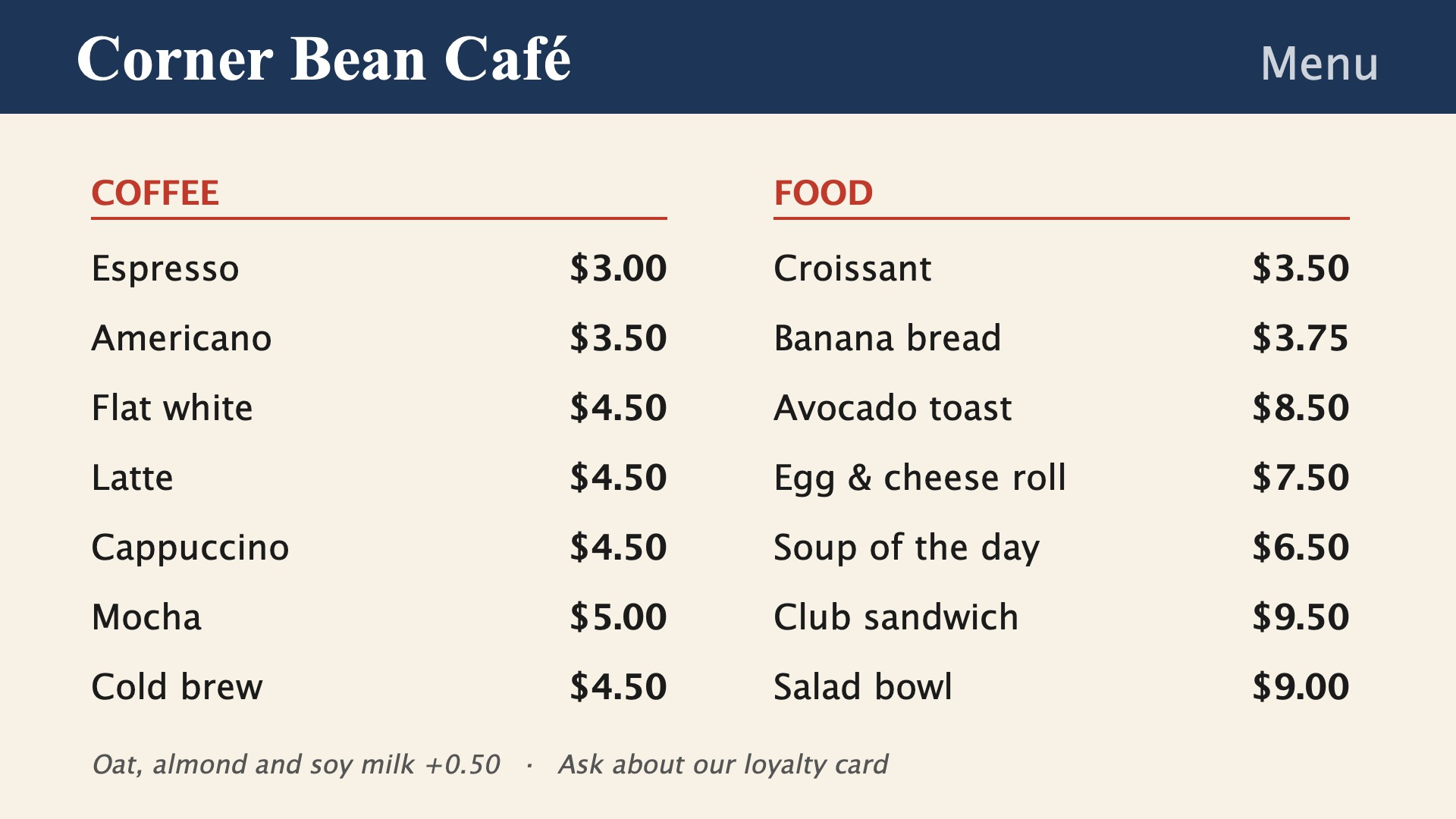
Display the designs you already use. Make artwork in your preferred design tool, save it as an image and send it to Placard.
Choose how long each photo stays on screen, fit or fill, and cut or fade photo transitions. Navigate the TV app with your TV remote.
Rotate playback for a portrait-mounted display. Use the TV’s screen-orientation setting to suit your space.
Transfers continue when you switch apps or turn off your phone’s screen. If the connection drops, retry: completed files are reused and the unfinished file is sent again.
Mix photos and supported MP4 videos in a playlist. Pro adds video playback and multiple playlists, with up to 500 items per playlist, subject to storage.
Set weekday and time-window schedules for your playlists, with a default playlist outside scheduled times. Placard must stay open on the TV.
04 / Pricing
No trial timer. No watermark.
One-time purchase in the TV app.
Google Play shows your local price before purchase. Purchase and restoration require Google Play access and the Google account that bought Pro.
05 / Screens

06 / Privacy
07 / Good to know
No. Once your content is saved on the TV, playback works without internet. Pairing and sending new content require the phone and TV to be on the same local network. Installing the apps, buying Pro and restoring a purchase require store access.
After restarting the TV, open Placard to resume the saved playlist. Keep Placard open while playing your display. Device power-saving settings can also affect playback.
Content updates happen on the local network where the TV is installed. Placard does not include a cloud dashboard for updating screens at another location.
Use JPEG, PNG or WebP images and supported MP4 videos; video playback requires Pro and depends on the TV’s decoder. Placard Remote prepares selected media for transfer. The TV app supports compatible Android TV 8.0+ and Google TV devices; the companion needs an Android 8.0+ phone or tablet. Check Google Play for your device’s compatibility.
Placard Remote prepares and sends playlists to the separate Placard TV app. It does not mirror your phone’s screen or act as a general-purpose TV remote. Your phone can disconnect after the transfer finishes.
Ready for your screen
Need help pairing or playing? Get Placard support →